How to Learn Helix Editor, an Alternative to Neovim and Vim
Helix is a CLI text editor with alternative modal support for Neovim and VIM. This editor is written in the Rust programming language, making it faster with a single binary.
Key Features
Helix has minimal configuration. Unlike Neovim and VIM, which require managing configurations by installing plugins to suit the desired workflow. Here is a list of features that Helix has, quoted from its official website:
- Multiple selections simultaneously. Multi-cursor code editing is built into Helix.
- Integration with Tree-sitter. Enables syntax highlighting, indentation calculation, and code navigation.
- Code manipulation. Easy navigation and selection of functions, classes, comments, and so on.
- Language server support. With language-specific autocomplete, go to definition, documentation, diagnostics, and IDE features without additional configuration.
- Built with the Rust programming language. High performance and more battery efficient.
- Built-in features. Fuzzy search for files, symbols, projects, themes, fugitive, surround, and much more.
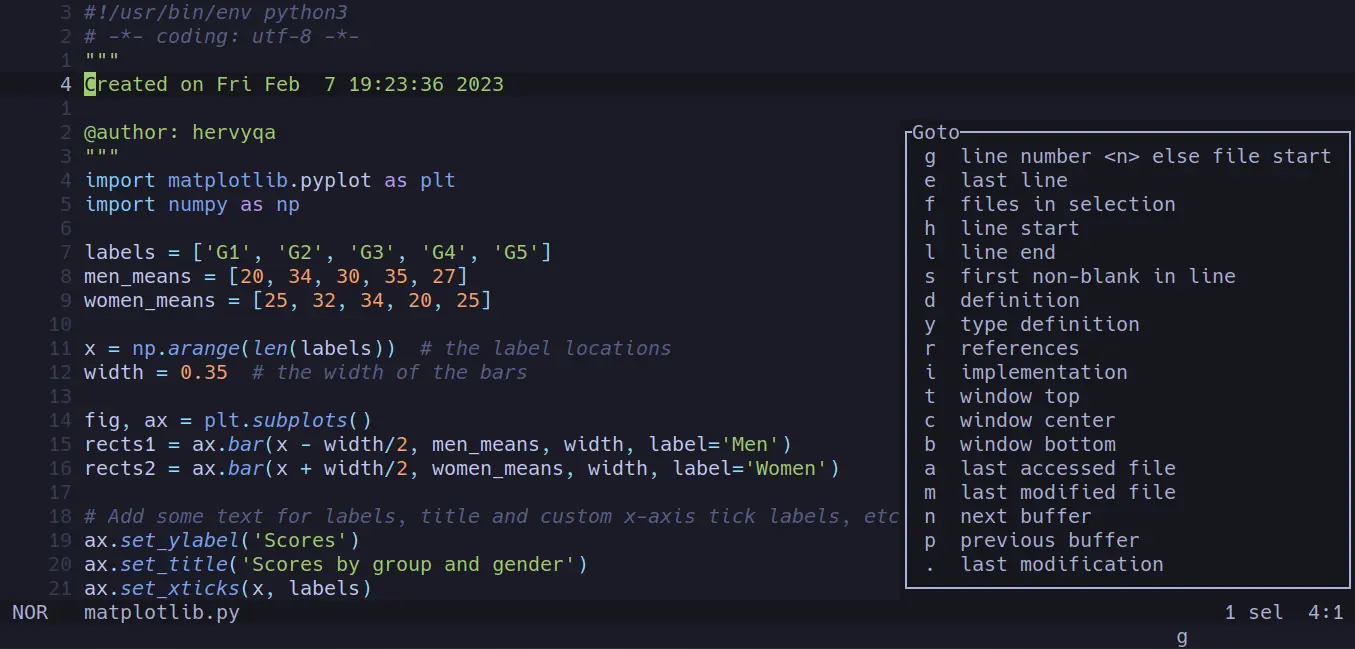
Helix is equipped with a variety of features including syntax highlight which makes it easy for Platform Engineer (Wyssmann, Adrian).
Shock therapy
When using Helix, you have no choice but to learn again. Even with minimal configuration, Helix has a keymap that is 30% different from neovim/vim and must be memorized to get used to. The rest of the keymap is almost the same. Fortunately, the Helix developers have provided a built-in tutorial like vimtutor in vim.
hx --tutorMoreover, there is no need to think about how LSP configuration in Helix, because it has been well configured. If using vim/neovim, too many vimscripts need to be taken care of all of them. While in Helix checking can be done with hx --health markdown and see what LSP needs to be installed (Hårek, Tim).
Installation
OpenBSD
doas pkg_add install helixFreeBSD
doas pkg install helixFor complete installation instructions, please refer to the Helix Docs page.
Basic usage
Cursor navigation directions
Like navigation in vim, helix uses h, j, k, and l to move the cursor. You can also use the arrow keys, but hjkl is faster.
| Key | Description |
|---|---|
| h | Left |
| j | Down |
| k | Up |
| l | Right |
Opening files
Open helix by running hx.
hxOpen with a specific file.
hx filename.xyzClosing helix
Helix also has normal, insert, and visual modes like vim. Some of the following normal mode shortcuts are still common and compatible with helix.
| Command | Description |
|---|---|
:q | Close the file and application. |
:q! | Force close the application. |
:qa! | Force close all open buffers and the application. |
Buffer is a file or directory that has been opened.
Configuration
Some basic configurations that may need to be added. For example, theme type and line number.
| Command | Description |
|---|---|
:theme tokyonight | Change the theme. |
Permanent configurations can be opened in config.toml.
| Command | Description |
|---|---|
:config-open | Opens the helix configuration. |
:config-reload | Reloads the helix configuration. |
theme = "tokyonight"

[editor]
line-number = "relative"
cursorline = true

[editor.lsp]
display-messages = true
Yep, that’s right. The additional configuration is just a few lines above. For more details, please refer to the Helix Docs page.
If you are working on a project that is quite large. Suggested enable multiple to make the helix display the tab in a built-in language not single file (Frere, Jonathan).
[editor]
bufferline = "multiline"
Advanced usage
Deleting characters
Unlike vim, deleting characters in helix uses the keymap d.
| Key | Description |
|---|---|
| d | Deletes 1 character. |
Entering characters
Similar to vim, the insert mode still uses i.
| Key | Description |
|---|---|
| i | insert mode. |
| esc | normal mode (exit insert mode). |
Saving files
| Command | Description |
|---|---|
:w | Save the file in the current buffer. |
:w filename.xyz | Save the file in the buffer with a specific name. |
Can be combined with q to exit the helix.
| Command | Description |
|---|---|
:wq | Save and close the application. |
:wqa | Save and close all buffers. |
Insert mode
As previously mentioned, the keymap i for insert mode is right before the cursor. Meanwhile, there are several other keymaps such as:
| Key | Description |
|---|---|
| i | insert mode before the cursor. |
| a | insert mode after the cursor. |
| shift+i | insert mode at the beginning of the line. |
| shift+a | insert mode at the end of the line. |
Starting a new line
| Key | Description |
|---|---|
| o | insert mode after the current line. |
| shift+o | insert mode before the current line. |
The above commands are similar to those in neovim or vim.
Movement and selection
Movement and selection in helix are performed automatically and simultaneously. This is slightly different from vim.
| Key | Description |
|---|---|
| w | Move and select 1 word, including its space. |
| e | Move and select 1 word from the cursor to the end of the word. |
| b | Move and select 1 word from the cursor to the beginning of the word. |
The keymaps shift+w, shift+e, and shift+b also have similar functions, except that the movement depends on whitespace such as spaces and tabs.
Moving by count
Moving by count is also possible, for example 2w, 4e, 5b. The explanation is as follows:
| Key | Description |
|---|---|
| 2w | Move 2 words forward. |
| 4e | Move 4 words forward ending at the end of a word. |
| 5b | Move 5 words backward. |
Changing characters
The shortcut used is the keymap r.
| Key | Description |
|---|---|
| c | Changes the selected character or word/sentence. |
For example, select a word with w, then replace it with the keymap c, which immediately enters insert mode.
Visual/selection mode
Visual mode in helix is almost the same as in vim.
| Key | Description |
|---|---|
| v | visual mode. |
| v again, or esc | normal mode (exit visual mode). |
Selecting lines
Select a line using the x keymap. If you want to select the next line, press x again. Sometimes you may intend to delete a character, but instead select it in helix. (This is because your subconscious is used to using x to delete characters in vim.)
| Key | Description |
|---|---|
| x | Select 1 row. |
| 5 | Select 5 rows. |
| ; | Deselect rows. |
| alt+; | Flip row selection. |
Undoing changes
Commands for undoing changes:
| Key | Description |
|---|---|
| u | Undo |
| shift+u | Redo. |
Repeat several times until the changes are as expected.
Copying and pasting
Copying in helix can be done in the internal helix or in the clipboard system.
| Key | Description |
|---|---|
| y | Yank/copy, copies the selected characters. |
| p | Paste, pastes the copied content. |
| shift+p | Paste, pastes the copied content before the cursor. |
This can also be done with calculations to determine the number of copies/pastes.
| Key | Description |
|---|---|
| 2 y | 2x Yank/copy, copies the selected characters. |
| 4 p | 4x Paste, pastes the copied characters. |
| 10 shift+p | 10x Paste, pastes the copied characters before the cursor. |
Basically, the keymaps d (delete character) and c (change character) can also be considered yank mode, where the deleted/changed characters are stored in the buffer so that the paste command p or shift+p can be executed.
To avoid storing in the buffer, use alt+d or alt+c. To copy or paste from the system clipboard, use the keymaps below.
| Key | Description |
|---|---|
| spacey | Copy to system clipboard. |
| spacep | Paste from system clipboard. |
Character search
Search for characters like in vim or neovim.
| Key | Description |
|---|---|
| / | Search for characters/words. |
| n | Go to the next search result. |
| n | Go to the previous search result. |
| ? | Search for characters/words backwards. |
Unlike in vim, in helix, when searching with shift+/, the n direction remains forward and shift n remains backward/previous.
Multiple cursors
Adding cursors is very useful for changing characters simultaneously. For example, for deleting, replacing, and regex functions.
| Key | Description |
|---|---|
| shift+c | Search for characters/words. |
| shift+alt+c | Go to the next search result. |
| , | Go to the previous search result. |
Selecting from the selection results
This is intended to replace a selected character or text. Usually to replace a word, similar to the sed regex function in vim.
| Key | Description |
|---|---|
| s | Selects the appropriate character according to the selection. |
For example, the pattern works like this: select several times with x or % for all lines. Press s, then enter the desired character and press enter. It will automatically become a multi-cursor. You can then change it as desired.
Additional selection with regex
This selection can use the plus sign + when using the s keymap in the selection area. For example: space and plus +.
Straightening from selection
| Key | Description |
|---|---|
| & | Straighten the selection results. |
For example, there is a line like this.
 * 98) lorem
 * 99) ipsum
 * 100) dolor
 * 101) sit
 * 102) amet
Becoming:
 *  97) lorem
 *  99) ipsum
 * 100) dolor
 * 101) sit
 * 102) amet
Dividing the selection into rows
| Key | Description |
|---|---|
| alt+s | To split into options on each line. Generally used to straighten tables. |
    | FRUIT   | AMOUNT |
    |---------|--------|
 | Apples  | 8      |
    | Bananas | 6      |
  | Oranges | 3      |
     | Donuts  | 4      |
Becoming:
     | FRUIT   | AMOUNT |
     |---------|--------|
     | Apples  | 8      |
     | Bananas | 6      |
     | Oranges | 3      |
     | Donuts  | 4      |
Selecting down to specific characters
| Key | Description |
|---|---|
| f | Selects the line up to and including the specified character. |
| t | Selects the line up to but not including the specified character. |
shift+f and shift+t also have similar functions, except that they skip over whitespace characters such as spaces or tabs.
Replacing characters or words
| Key | Description |
|---|---|
| r | Paste with special characters. |
| shift+r | Paste with the contents of the buffer or the system clipboard. |
Repetition
Repetition can be used to repeat the same command, or to repeat the previous search results f and t.
| Key | Description |
|---|---|
| . | Repeats the previous insert mode result. |
| alt+. | Repeats the command from the previous f or t result. |
Replacing text from the yank/clipboard copy
Once text has been copied, either by yanking or from the system clipboard, it can be used to replace other text if it has been selected.
| Key | Description |
|---|---|
| shift+r | Replaces the selected text with the contents of the clipboard. |
Merging lines
Multiple lines must first be selected with x, then press shift+j.
| Key | Description |
|---|---|
| shift+j | Merges multiple selected lines. |
Line indentation
Indents the current line or selected lines.
| Key | Description |
|---|---|
| > | Indentation protrudes outward/to the right. |
| < | Indentation protrudes inward/to the left. |
Addition and subtraction
Incrementing and decrementing values can be done in helix. This is usually done to change values in a list.
| Key | Description |
|---|---|
| a | Increases the value. |
| x | Decreases the value. |
For example:
1) list a
3) list b
4) list c
5) list d
6) list e
Becoming,
1) list a
2) list b
3) list c
4) list d
5) list e
Register Function
This function is used to store different copies, which can be called up at any time. Unlike the usual yank, which only stores one copy, the register can store many different copies. register key is shift+'.
For example, register:
- condition a: copy
sentence one - condition b: copy
sentence two - condition c: copy
sentence three
There are 3 conditions consisting of a, b, and c. To store the register, use the command:
| Key | Description |
|---|---|
| shift+' a y | Stores (yanks) the copy to register a. |
| shift+' b y | Stores (yanks) the copy to register b. |
| shift+' c y | Stores (yanks) a copy to register c. |
After storing, next paste the text from a register.
| Key | Description |
|---|---|
| shift+' a p | Paste text from register a. |
| shift+' b p | Paste text from register b. |
| shift+' c p | Pastes text from register c. |
The copied text can also be used to replace selected text.
| Key | Description |
|---|---|
| shift+' a r | Replaces the text from register a. |
| shift+' b r | Replaces the text from register b. |
| shift+' c r | Replaces text from register c. |
Macro Function
Useful for storing command steps in a register. Default key is @.
| Key | Description |
|---|---|
| shift+q r | Start macro recording. |
| shift+q r | Stop macro recording. |
| q r | Run the macro function. |
| 5q r | Run the macro function 5 times, can be replaced with nq. |
Searching with selection
Search for text using / and then type the word you want to find. In addition to typing characters, another way is to select characters as search characters.
After selecting a character word, for example with w/e/b, press * to save it as a search register. Then the word can be searched for with n or shift+n.
| Key | Description |
|---|---|
| * | Keep selection results into search registers /. |
Using Jumplist
With jumplist, you can save the cursor position at a specific location.
| Key | Description |
|---|---|
| ctrl+s | Save jumplist. |
| ctrl+o | Next jumplist. |
| ctrl+i | Previous jumplist. |
Rotate and delete primary selection
After selecting, there may be times when some selections are not needed. By using alt+,, the selected results can be deleted.
| Key | Description |
|---|---|
| ) | Go to the next selection. |
| ( | Go to the previous selection. |
| alt+, | Clear the main selection. |
Changing uppercase/lowercase letters
To change uppercase letters to lowercase letters, use `, while to change lowercase letters to uppercase letters, use alt+`.
| Key | Description |
|---|---|
| ` or alt+` >}} | Switch between lowercase and uppercase letters. |
| ~ | Switch between uppercase and lowercase letters. |
Separating selections with regex patterns
Separating selections has specific use cases, such as capitalizing a sentence, separating combined lines into multiple lines, and other conditions that require separating selected words/sentences.
The general steps are as follows.
- Select a line, using either x, w, e, or b.
- Press shift+s to split the selection.
- Select the regex pattern. For example, separate by a period space
., exclamation mark space!, or question mark space?. Sentences are usually separated by separators and spaces. So, the regex is\. |! |\?. Periods and question marks need to be preceded by a backslash\. - Select the cursor position to be in front of or behind the separated sentence. Move it using alt+;.
- In multi-cursor mode, replace the desired changes with r, c, or i.
For example, there are 3 sentences. Separate them and capitalize the first letter.
learn programming languages! python is a high-level programming language? created by guido van rossum.Becomes:
Learn programming languages!
python is a high-level programming language?
Created by guido van rossum.Conclusion
Helix is ideal because it uses minimal configuration with built-in autocomplete, fuzzy search, and multi-cursor features. Although each programming language’s language-server is installed separately with Helix (as with other editors), Helix still has features such as autopairs, fugitive, and others to support program writing. Settings for LSP are available on the Helix Wiki. More complete keymap configurations and usage instructions are available in the official documentation.
Helix is considered to have fairly fast performance. It even supports modals such as space, f, and g, which make navigation maneuvers easier (Evans, Julia). Good to go to definition, declaration, reference.
New users migrating from vim or neovim will certainly like it, and it is definitely worth trying. Even if you are a veteran vim/neovim with decades of experience (Lafdzun, Kalamuna).
Article Info
Thank you
I appreciate you reading this article. If you have thoughts or want to discuss it, you can reach me via Email. Feel free to connect with me on Mastodon or Bluesky. And take care of yourself.
References
- Evans, Julia. 2025. “Notes on switching to Helix from vim”. October 10, 2025. https://jvns.ca/blog/2025/10/10/notes-on-switching-to-helix-from-vim/
- Frere, Jonathan. 2024. “Helix: Why (And How) I Use It”. December 12, 2024. https://jonathan-frere.com/posts/helix/
- Lafdzun, Kalamuna. 2025. “Why a Vim Veteran Switched to the Helix Editor”. October 12, 2025. https://algustionesa.com/why-a-vim-veteran-switched-to-the-helix-editor/
- Hårek, Tim. 2023. “My thoughts on Helix after 6 months”. June 19, 2023. https://timharek.no/blog/my-thoughts-on-helix-after-6-months/
- Wyssmann, Adrian. 2025. “Helix, a modern editor for linux”. September 18, 2025. https://wyssmann.com/blog/2022/09/helix-a-modern-editor-for-linux/
Reuse
This work is licensed under CC BY-NC 4.0.
Citation
Bibtex citation:
@online{hervyqa_how_t_2023,
  author = {Hervy Qurrotul},
  title = {How to Learn Helix Editor, an Alternative to Neovim and Vim},
  date = {2023-02-07},
  url = {https://hervyqa.srht.site/blog/how-to-learn-helix-editor/},
  langid = {en}
}
For attribution, please cite this work as:
Hervy Qurrotul. 2023. “How to Learn Helix Editor, an Alternative to Neovim and Vim.” February 07, 2023. https://hervyqa.srht.site/blog/how-to-learn-helix-editor/.